Docs / Getting started
Install and set up
Download Harnes Code for Windows, link it to your account with the phone app and get your PC ready.
On this pageWhat you need1. Install the apps2. Link your PC to your account3. Prepare Windows4. Mode, folder and model
Harnes Code has two parts: the Windows app, which does the real work on your computer, and the Android app, which holds your account, wallet and remote control. Setup takes about five minutes.
What you need
- Windows 10 or 11 (64-bit)
- An Android phone to sign up with your mobile number
- An internet connection (no VPN needed in Iran)
1. Install the apps
- Get the Windows installer from the download page and run it. If Windows shows “Windows protected your PC”, click More info and then Run anyway.
- Install the Android app from the same page and sign in with your mobile number. An existing 2928 or Harnes account works as is.
2. Link your PC to your account
- In the phone app open the Computers tab and tap Connect a new computer.
- You get a 6-digit code that is valid for 10 minutes.
- Type the code into the Windows app and press Connect. Give the PC a name so you can recognise it on the phone.
Tip: one account can have several computers; they share the same credit.
3. Prepare Windows
The app checks a few things and fixes each one with a single button:
- PowerShell script execution: without it npm and many tools don’t run. It is enabled for your user only.
- Git, Node.js and Python: installed with winget if missing.
4. Mode, folder and model
- Mode: “Auto” (recommended) or “Ask”. See Modes and safety.
- Project folder: where the agent works freely. Change it any time from the top bar.
- Model: not sure? Pick Claude Sonnet 5. See Models and credit.
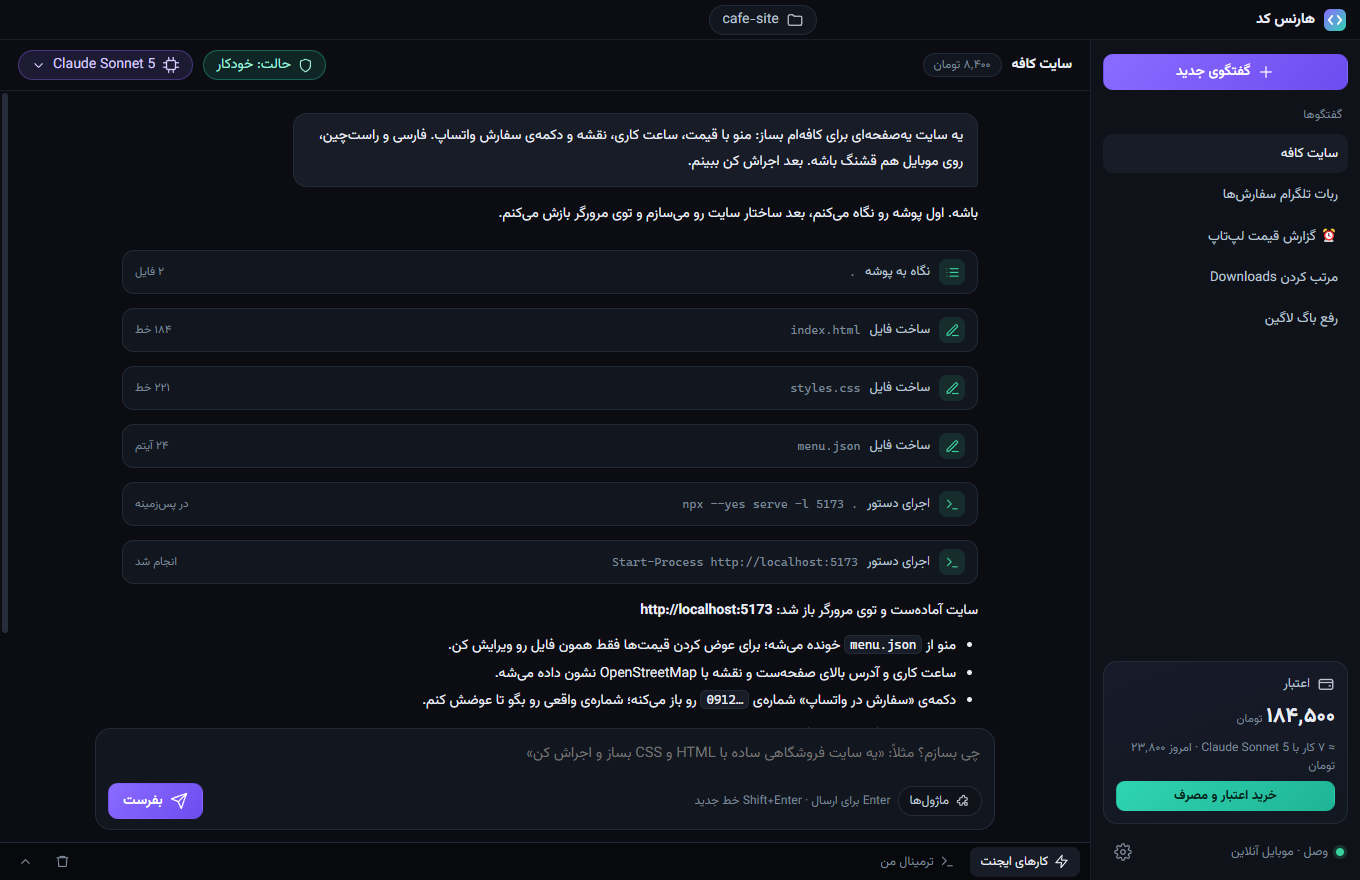
Done! Continue with your first task.