Modules
Connect services like Instagram, Telegram, Divar, cPanel and Gmail so the agent can work with them for you.
Modules let the agent work with real services: post content, compare prices, read email, deploy your site and much more. You just say what you want in plain language.
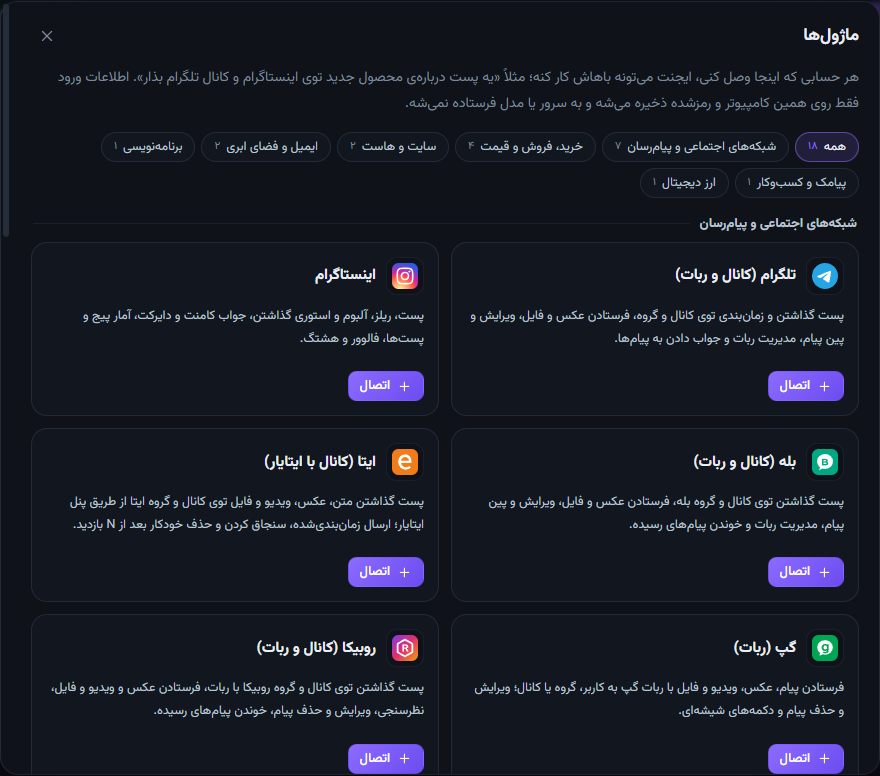
Connect a module
- In the Windows app: Settings → Manage modules, or the Modules button next to the input box.
- Press Connect on a module and fill in what it asks for. Each field explains where to get it.
- Press Test and save. When it works, the module’s logo appears next to the input box.
Some modules — Torob, Digikala and Emalls — need no account at all and are always ready.
Using them
You don’t need to know any tool names or commands; just ask:
Compare the Lenovo Legion 5 on Torob and Digikala and tell me the cheapest seller with a warranty.
Several accounts
You can connect several accounts of the same service (for example two Instagram pages). Just say which one in your request.
Alerts
Divar, Torob, Digikala, Gmail and Bitunix can create alerts — e.g. “tell me when a Peugeot 206 under 300m toman is listed”. Alerts notify you on Windows and on your phone.
Security
Logins stay only on your computer, encrypted, and are never sent to our server or to the model. Important actions — deleting a GitHub repo, sending SMS to many numbers — ask for your approval first.
New modules
New modules arrive automatically without an app update. The full list and a guide for each one is below.
 Telegram (channels & bots)Post and schedule in channels and groups, send photos and files, edit and pin messages, run a bot and reply to messages.
 InstagramPost photos, reels, albums and stories, reply to comments and DMs, page and post insights, followers and hashtags.
 Bale (channels & bots)Post to Bale channels and groups, send photos and files, edit and pin messages, run a bot and read incoming messages.
 Eitaa (via Eitaayar)Post text, photos, videos and files to Eitaa channels and groups through Eitaayar; scheduled sending, pinning and auto-delete after N views.
 Gap (bot)Send messages, photos, videos and files with a Gap bot to users, groups or channels; edit and delete messages and inline buttons.
 Rubika (channels & bots)Post to Rubika channels and groups with a bot, send photos, videos and files, polls, edit and delete, read incoming messages.
 Soroush Plus (channels & bots)Post to Soroush Plus channels and groups, send photos and files, edit and pin messages, run a bot and read messages.
 DigikalaProduct search with filters and sorting, sellers, colours and warranties, specs, buyer reviews, price history and price-drop alerts.
 DivarSearch and analyse listings and market prices, alerts for new listings, see a seller’s number, manage your own listings and post new ones.
 EmallsPrice comparison on Emalls: product search, cheapest shops with city, stock, warranty and rating, and price-drop alerts.
 TorobPrice comparison: search products, cheapest sellers, specs, price history and alerts for price drops or new products.
 cPanelManage a cPanel host: files, databases, email, domains, SSL, cron jobs, backups and shell commands on the server.
 WordPress / WooCommerceWrite and publish posts and pages, upload images, manage WooCommerce products and orders, categories, comments and plugins.
 Google Drive & SheetsDrive files (search, download, upload, folders, sharing) and Google Sheets (read, write, append rows, create sheets and reports).
 GmailRead, search and summarise email, reply and send (with attachments), labels and archiving, download attachments and new-mail alerts.
 Kavenegar (SMS)Send single and bulk SMS, OTPs with templates, delivery status, received messages and account balance.
 GitHubCreate repositories, push and clone with a token, pull requests, issues, releases, Actions and anything else in the GitHub API.
 Bitunix (futures)Open and close long and short futures positions on your own Bitunix account: leverage, stop loss, multiple take-profits (TP1–TP4), balance and positions, cancel orders and price alerts.